
HEIC to PNG Converter Online Free
By PdfEditly Team · Published · 9 min read
Have you ever tried to open an iPhone photo on your computer, but the file would not open? The photo may be in HEIC format. Apple uses this format to save photos on many iPhones. It keeps photos small, so they take less space on your phone.
But some apps and websites do not accept HEIC files. They may ask you to upload a PNG image instead. In that case, you need a simple way to change the file type.
A HEIC to PNG converter can help. You can use PDFEditly to change your HEIC photos into PNG files online. You do not need to install a new app or create an account. The tool works in your browser and lets you convert up to 50 images in one batch.
What Is a HEIC File?
HEIC is a type of image file. Apple uses it to save photos on many iPhones and other Apple devices. A HEIC photo can look just like a normal picture. You may see a family photo, a pet, a place, or a screenshot. The main difference is the file type behind the image.
HEIC can save photos in less space than JPG at a similar level of image quality. This helps your phone store more photos without using too much space. Still, not every app can open HEIC files. Some websites also do not accept them. You may need to change the file to PNG or JPG before you can use it.
What Is a PNG File?
PNG is another image file type. It works with many image viewers, web browsers, and photo editing apps. PNG is a good choice when you need an image for design work, screenshots, logos, or further edits. It also supports a clear background, which is called transparency.
For example, a logo may have no white box behind it. The PNG file can keep that clear area, so you can place the logo on a colored page. PNG uses lossless compression. This means it does not add the same type of quality loss that JPG compression can add when it saves an image. However, a PNG file may be much larger than the HEIC file you started with.
Why Convert HEIC to PNG?
You may need to convert HEIC to PNG for a few simple reasons.
- A website does not accept HEIC: Some websites only accept JPG or PNG files. If you try to upload a HEIC photo, the site may show an error or refuse the file. A PNG copy can solve this problem when the site accepts PNG.
- You need the photo for design work: Design apps often support PNG. You may need a PNG photo for a poster, school project, product design, or social media graphic.
- You want to use a clear background: PNG supports transparency. This can help when you work with logos, icons, or images that have a clear area around the main object.
- You need a file that works with more apps: PNG has wide support across many devices and apps. It can be a useful choice when you share an image with someone who cannot open HEIC files.
HEIC to PNG Converter Online Free with PDFEditly
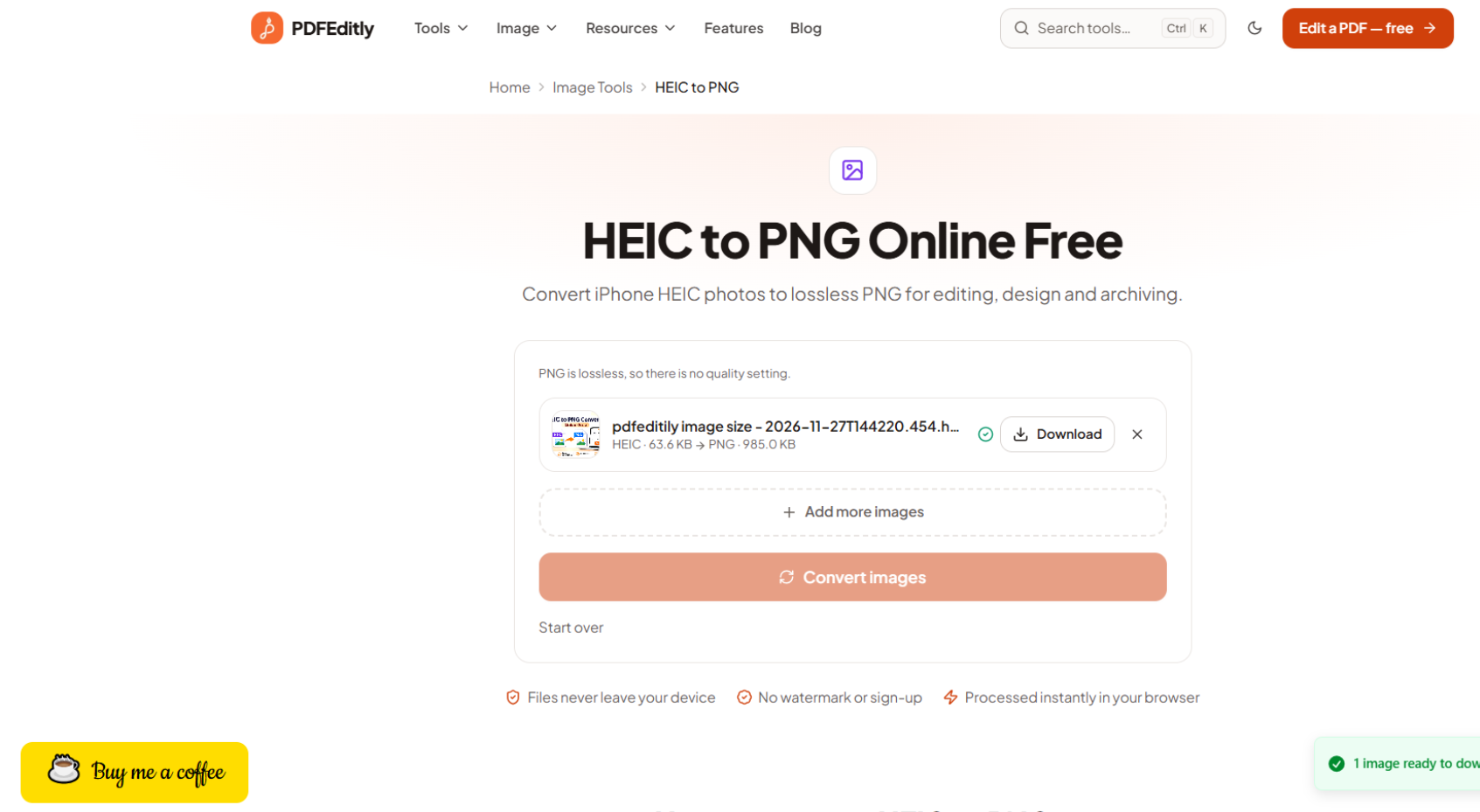
PDFEditly has a free HEIC to PNG converter for people who need to change iPhone photos into PNG files. The tool supports HEIC and HEIF image files. You can add up to 50 images in one batch, and each image can be up to 50 MB in size. This can help if you have several photos to convert at once.
PDFEditly processes the photos on your device through your browser. The tool does not send your selected images to its server. It also does not add a watermark or ask you to sign up. After conversion, you can save each PNG file on its own. You can also download all converted photos together as a ZIP file. This is useful when you need to keep a group of images in one folder.
The tool uses a HEIC decoder that runs in your browser. The first photo may take a little longer because the decoder needs to load. After that, you can convert your files and save the results.
How to Convert HEIC to PNG Online with PDFEditly
You can convert HEIC to PNG online for free in three simple steps.
Step 1: Add Your HEIC Photos
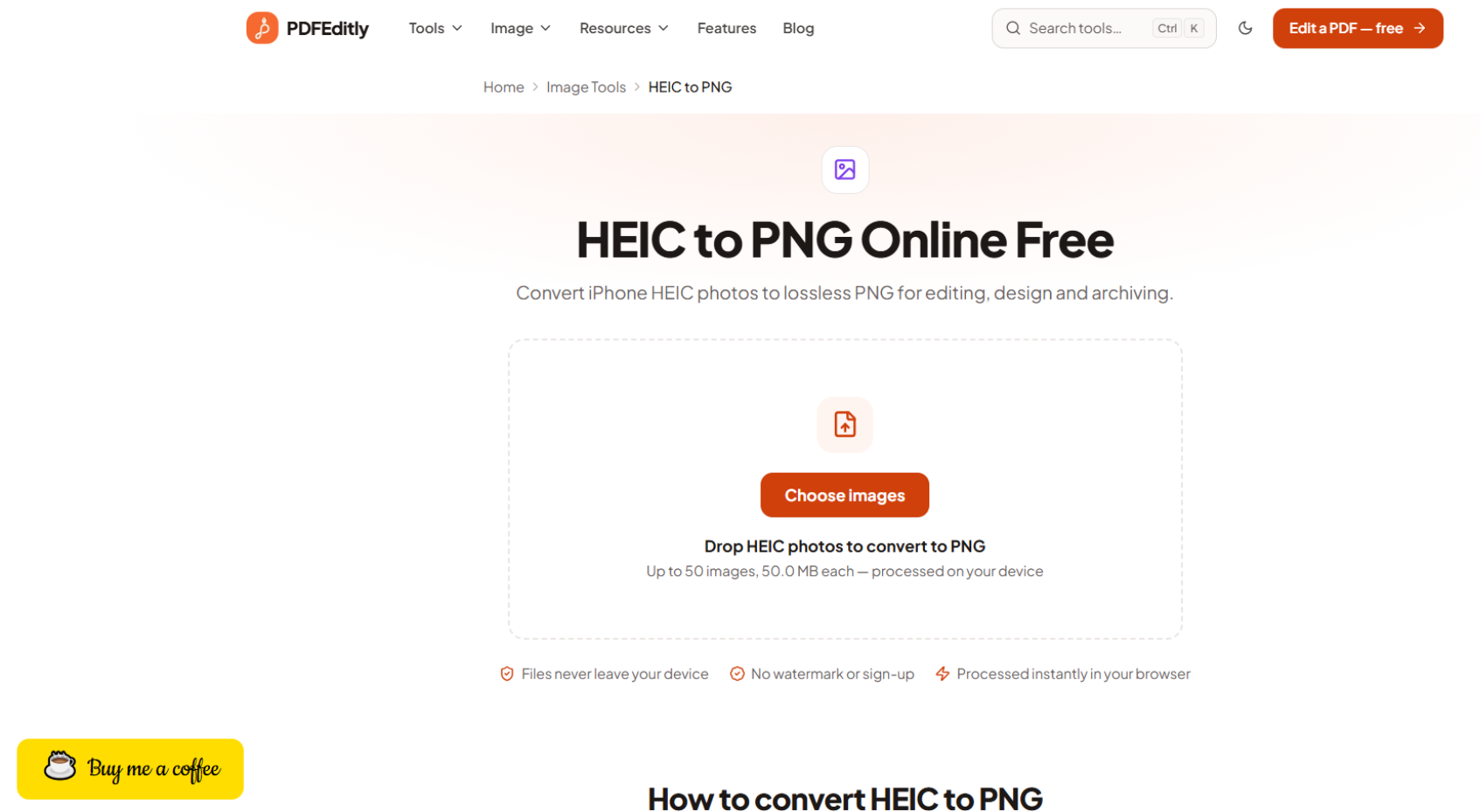
Open PDFEditly's HEIC to PNG tool. Click the file area or drop your HEIC photos into it. You can add HEIC or HEIF files from your computer or phone. The tool allows up to 50 images, with a 50 MB limit for each file.
Step 2: Convert Your Images to PNG
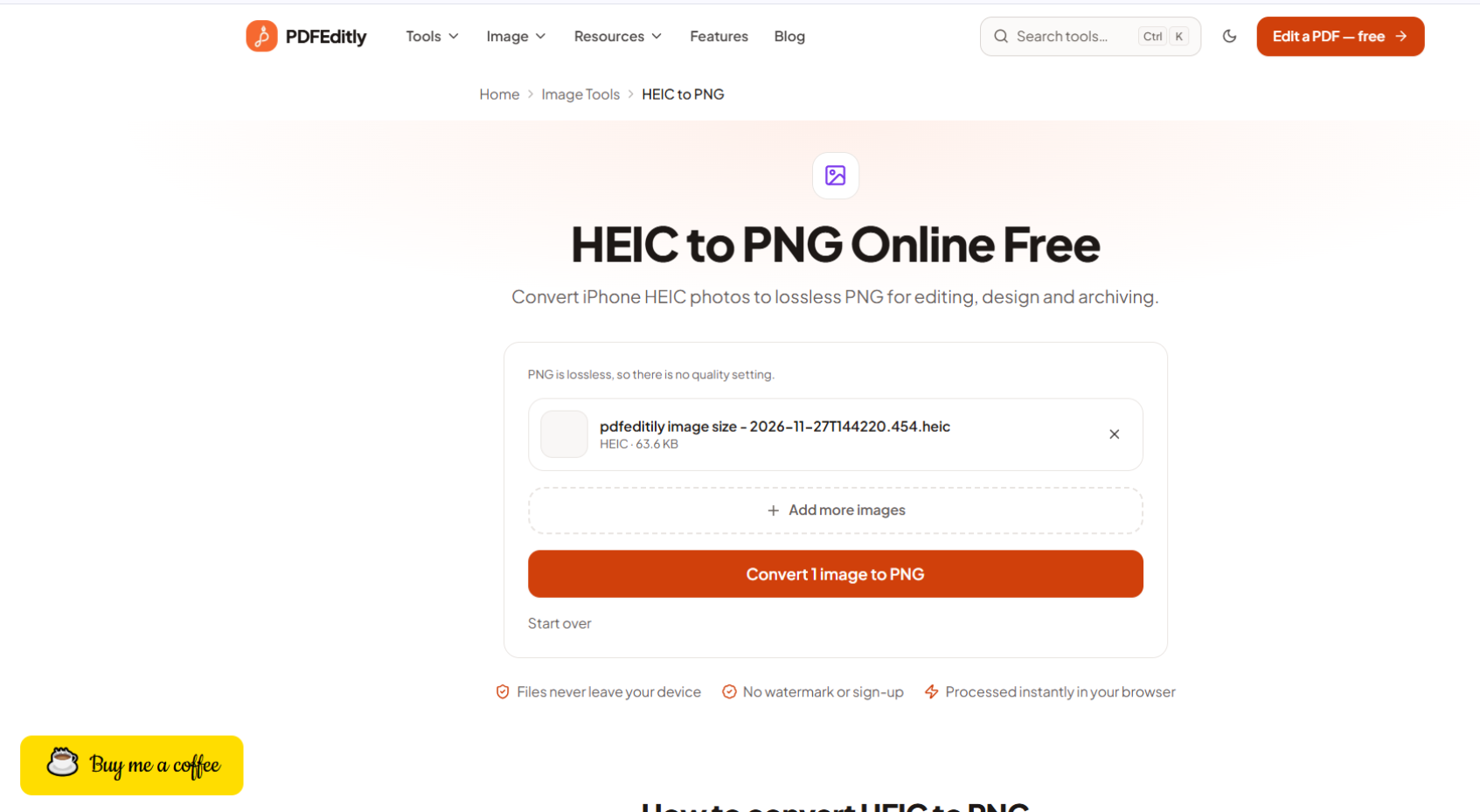
Click the Convert button. PDFEditly will read your HEIC photos in your browser and create PNG files. The first photo may take a little longer while the decoder loads. Keep the page open until the conversion ends.
Step 3: Download Your PNG Files
After the conversion, save each PNG image to your device. If you convert several photos, you can download them together as a ZIP file. Open the saved files and check that each photo looks right before you delete the original HEIC files.
HEIC vs PNG: What Is the Difference?
HEIC and PNG both store images, but they serve different needs.
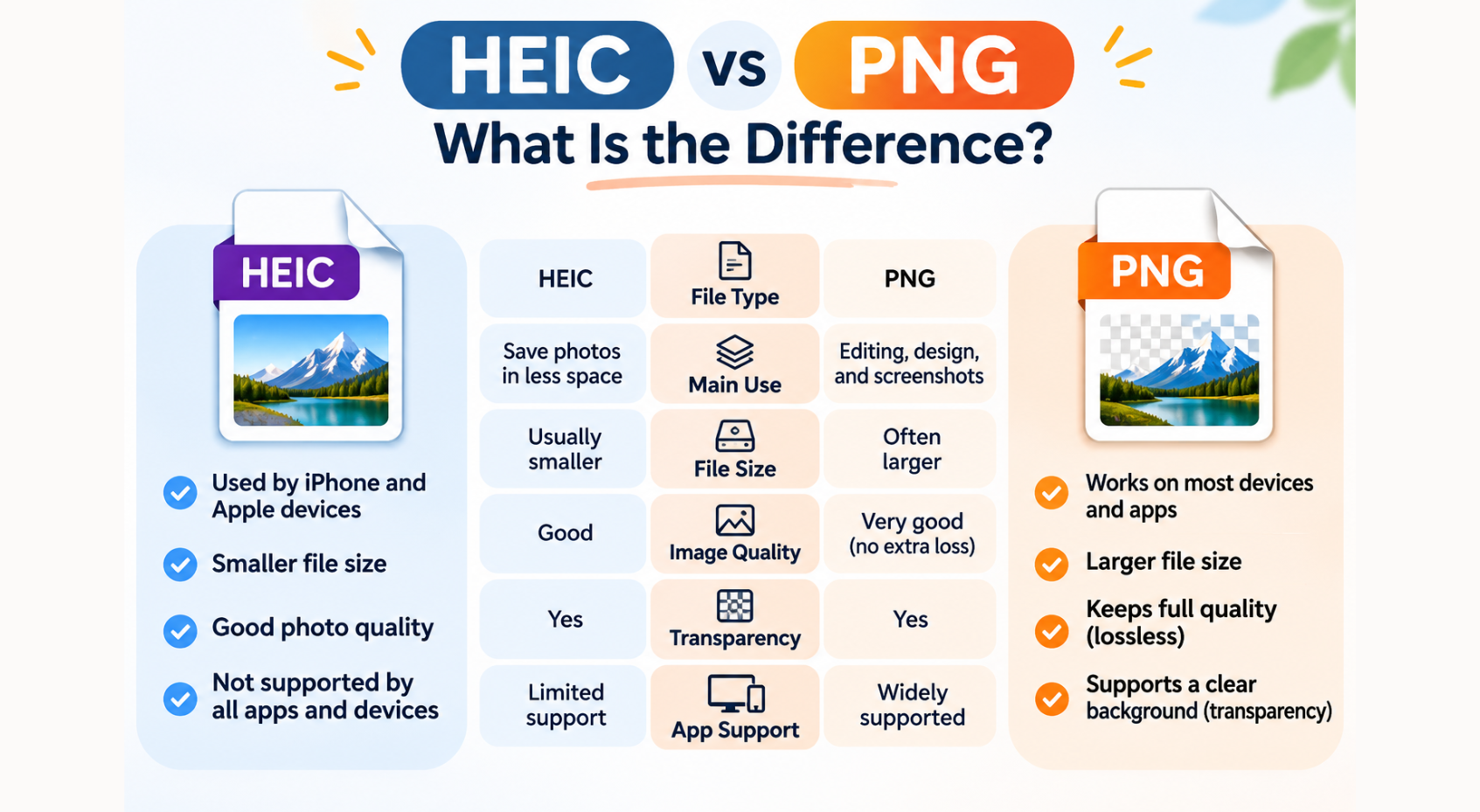
If you want to save space on your iPhone, HEIC is often a good choice. If an app asks for PNG, or you need a PNG for design work, then conversion makes sense.
Does HEIC to PNG Reduce Image Quality?
A HEIC to PNG conversion does not make a photo sharper or bring back detail that the original file has already lost. PNG saves the decoded image without another lossy compression step. This can help when you need to edit the image again. But the result may take much more space than the HEIC file.
For instance, PDFEditly mentions that “a 2MB HEIC picture can easily convert to a 10-20MB PNG image.” The file size is affected by the picture itself and its contents. In case you have to send a picture via e-mail or put it up on your website, then JPG could be the right choice, as it will generate a smaller file. Use PNG when required by the application or when creating a lossless PNG version is needed.
Can You Convert HEIC to PNG on Windows and Mac?
Yes. You can use an online HEIC to PNG converter on both Windows and Mac, as long as your browser and device support the tool.
- On Windows, there might be certain photo viewers that cannot open HEIC files without additional extensions. If you don’t wish to install any extension, then a tool on the internet via a web browser can work.
- On Mac, there is Preview that will allow viewing multiple HEIC images. There is also PDFEditly that can be used in case you want to convert multiple files or save them in PNG format.
- On iPhone, you can access the tool through your browser and select files from your device. The process might take some time depending on the size of the images and the available memory on your device.
What If Your HEIC File Does Not Convert?
Sometimes a photo may fail to convert. This can happen if the file is damaged, too large, or uses a HEIC type that the browser decoder cannot read.
Try these simple checks:
- Ensure that the file has the extension .heic or .heif.
- Ensure that the image size does not exceed 50 MB.
- Test using a single photo rather than a number of photos.
- Keep the browser tab open until the conversion is complete.
- If the file does not convert, use another copy of the photo.
Keep the original HEIC file until you have checked the PNG result. This is a good habit when you convert photos for work or important use.
Conclusion
A HEIC photo can save space on your iPhone, but some apps and websites may not accept it. In that case, a HEIC to PNG converter can help you make a copy in a format that works with more tools.
PDFEditly lets you convert up to 50 HEIC or HEIF photos at once. Each file can be up to 50 MB. The tool runs in your browser, does not add a watermark, and does not ask for an account. Use PNG when you need it for editing, design work, or an app that requires this format. Keep the original HEIC photo too, especially if it is important.
Frequently Asked Questions
Is PDFEditly's HEIC to PNG converter free?
Yes. PDFEditly provides you with a free HEIC to PNG converter. You do not have to register or create an account. In addition, there is no watermark added to the output PNG file.
Can I convert multiple HEIC images at once?
Yes. PDFEditly lets you add up to 50 HEIC or HEIF images in one batch. Each file can be up to 50 MB. You can save the PNG files one by one or download them together as a ZIP.
Are my HEIC photos uploaded to PDFEditly?
No. Images that you choose are processed in your browser by PDFEditly, which means that they will never get to their server. In fact, this program claims that the pictures you choose never reach the server.
Why is my PNG file larger than my HEIC photo?
HEIC uses a more space-saving image format. PNG keeps the decoded image without loss, so it often needs more space. A small HEIC photo can turn into a much larger PNG file after conversion.
Should I convert HEIC to PNG or JPG?
Choose PNG if you need a lossless image for editing, a screenshot, or a file that supports transparency. Choose JPG if you need a smaller photo for email, sharing, or a website upload.