
How to Protect a PDF with a Password: Step-by-Step Guide
By PdfEditly Team · Published · 4 min read
PDF documents often hold sensitive data — contracts, financial records, medical papers, and private correspondence. Anyone who receives an unprotected PDF can open it, so adding a password is one of the simplest ways to keep information private.
With PdfEditly, you can password protect a PDF online in your browser. No software install or account is required, and processing stays on your device.
What Does It Mean to Protect a PDF?
To protect a PDF means adding controls so the file cannot be opened freely. Password protection encrypts the document so viewers must enter the correct password before the content is shown.
If you protect a PDF with a password, unauthorized people cannot read the file even if they somehow obtain a copy.
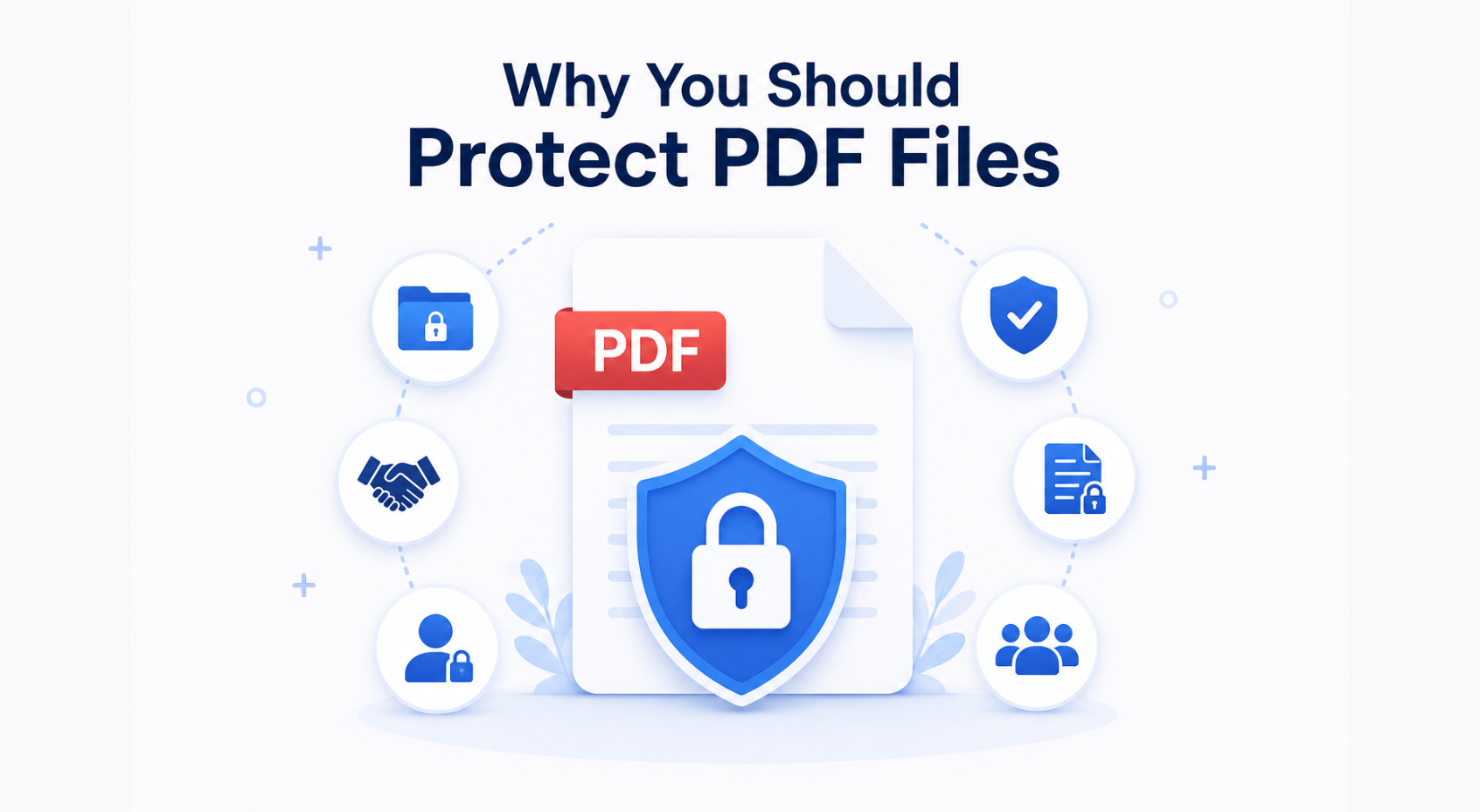
Why You Should Protect PDF Files
Adding PDF password protection is a fast way to secure business reports, legal papers, financial documents, medical records, and employee information.
A password-protected PDF can only be opened by people who know the passphrase — useful when you email files to clients or partners. You can also add a watermark for visible ownership, or edit the PDF before you encrypt it.
How to Protect a PDF Online
Follow these steps in PdfEditly to encrypt a PDF from your browser.
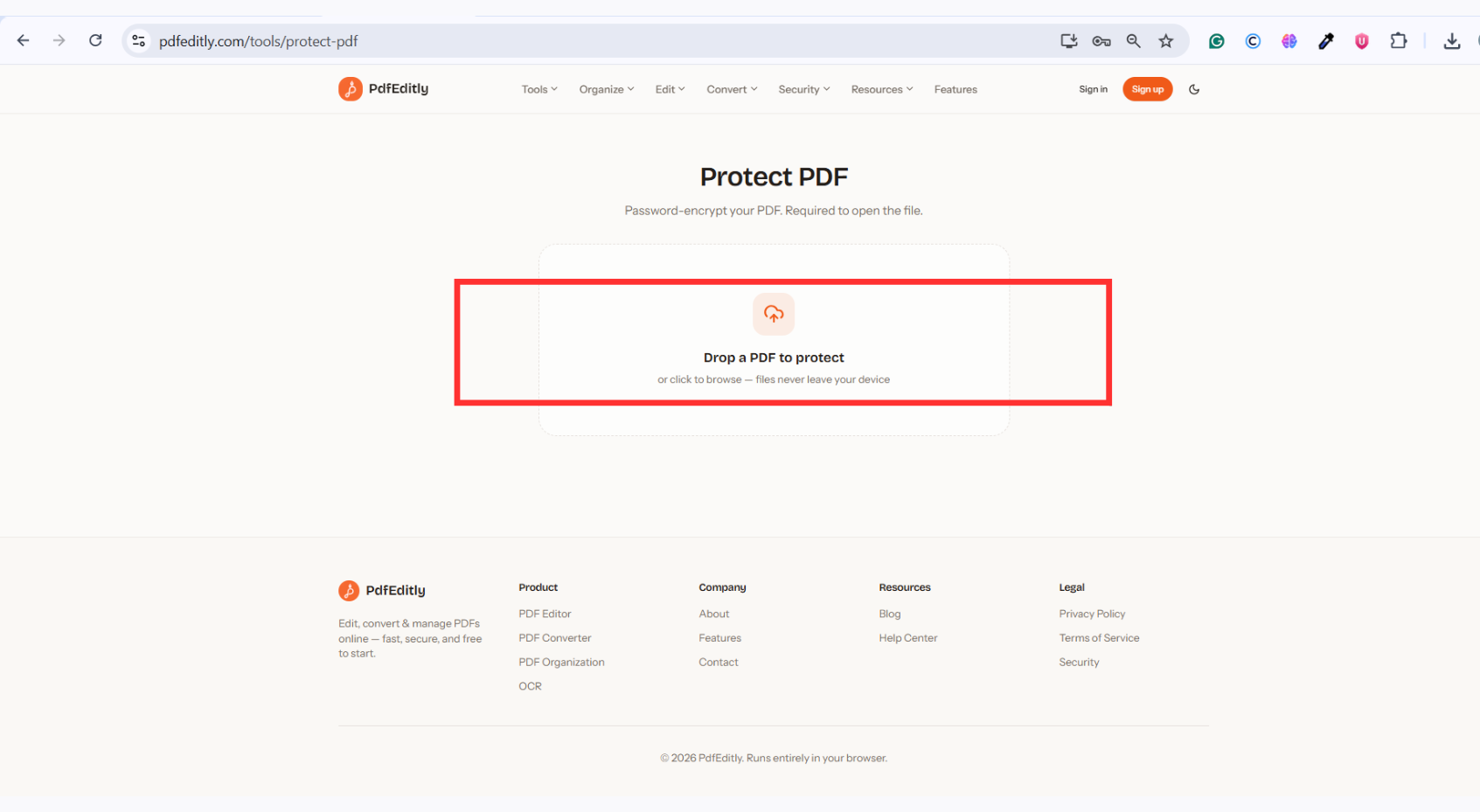
Step 1: Upload Your PDF File
Open the Protect PDF tool and drag your file into the upload area. PdfEditly loads the document locally in your browser.
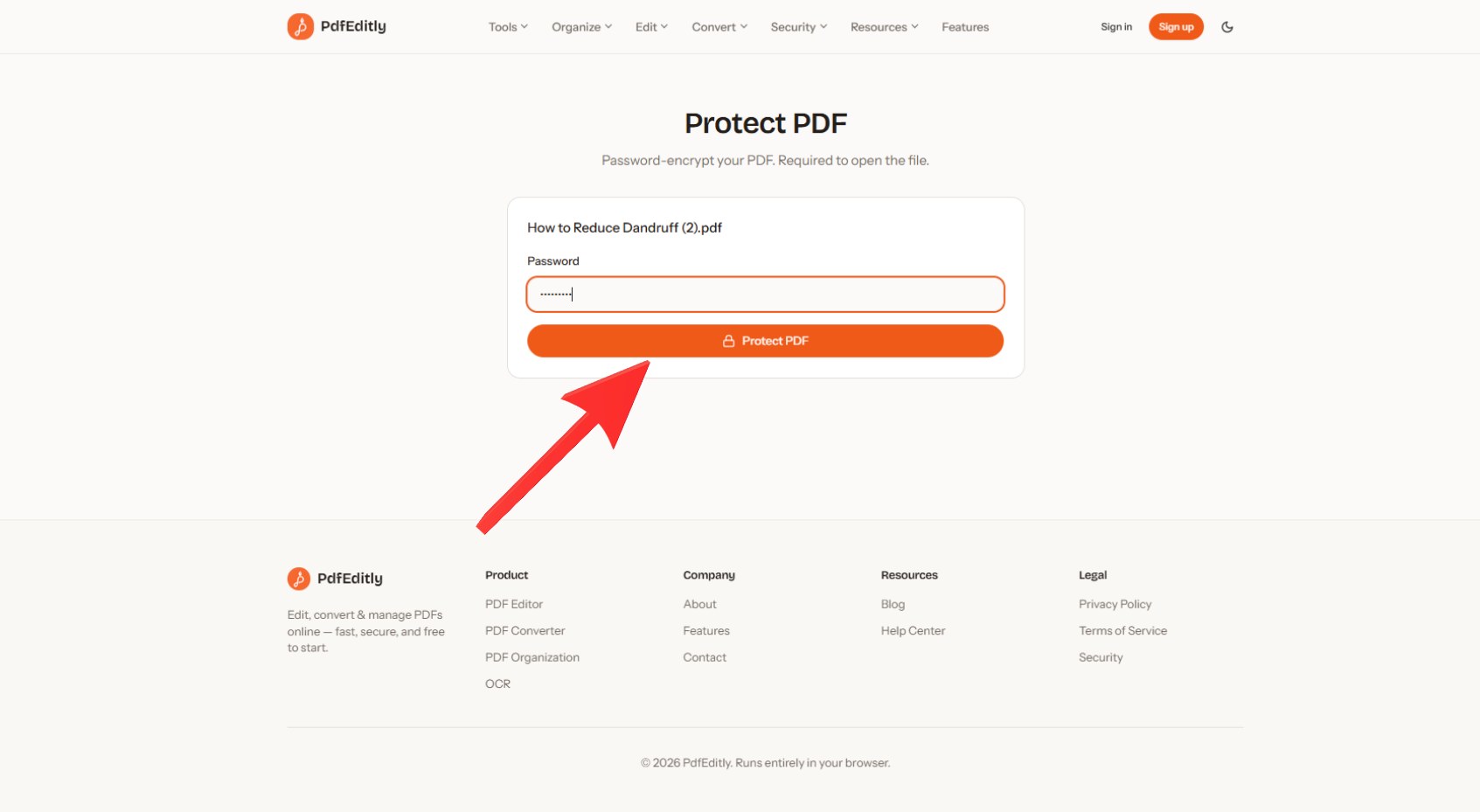
Step 2: Enter a Strong Password
Create a passphrase with letters, numbers, and symbols. Strong PDF security starts with a password that is hard to guess.
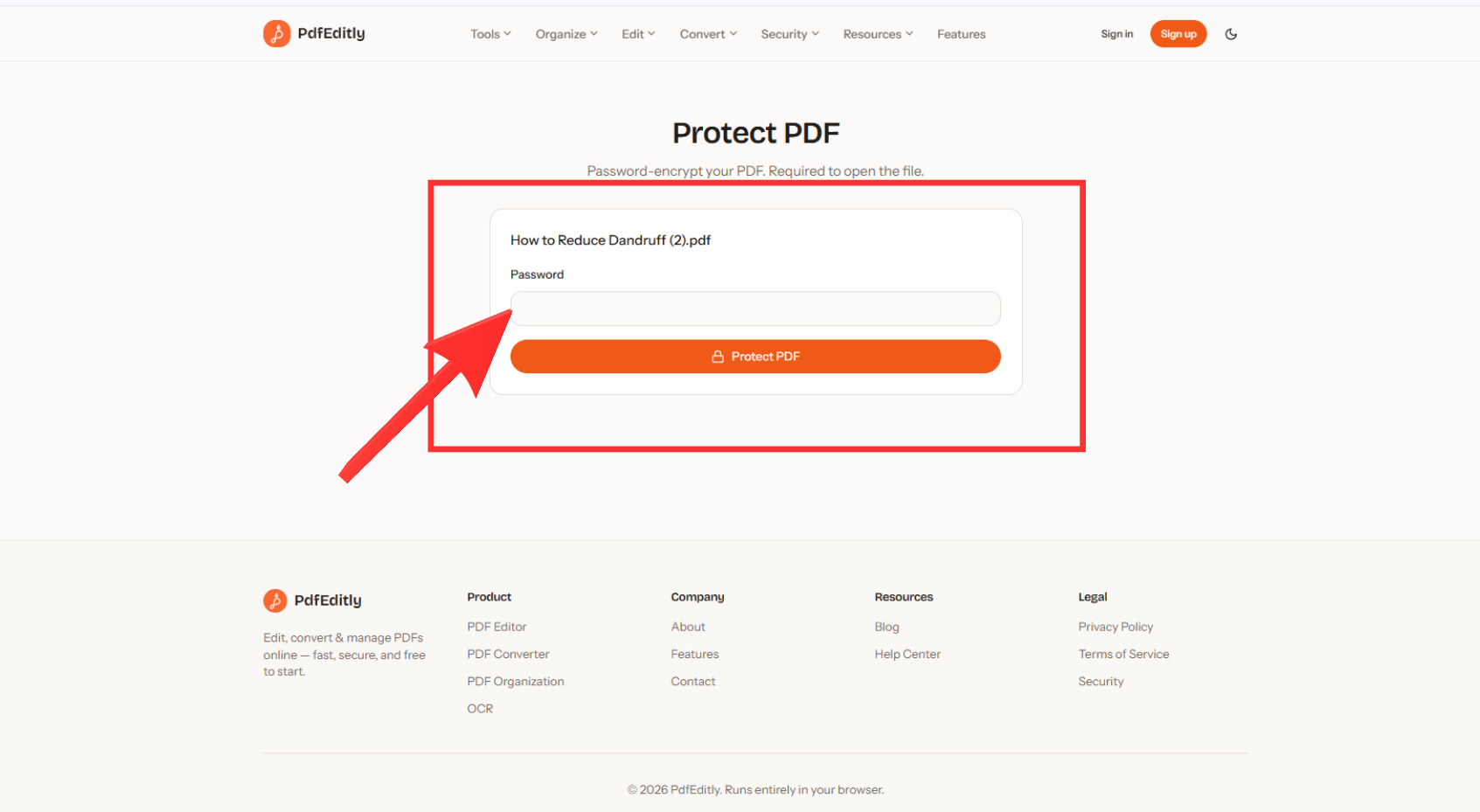
Step 3: Click Protect PDF
Press Protect PDF to encrypt the file. PdfEditly applies password protection and prepares a secure copy for download.
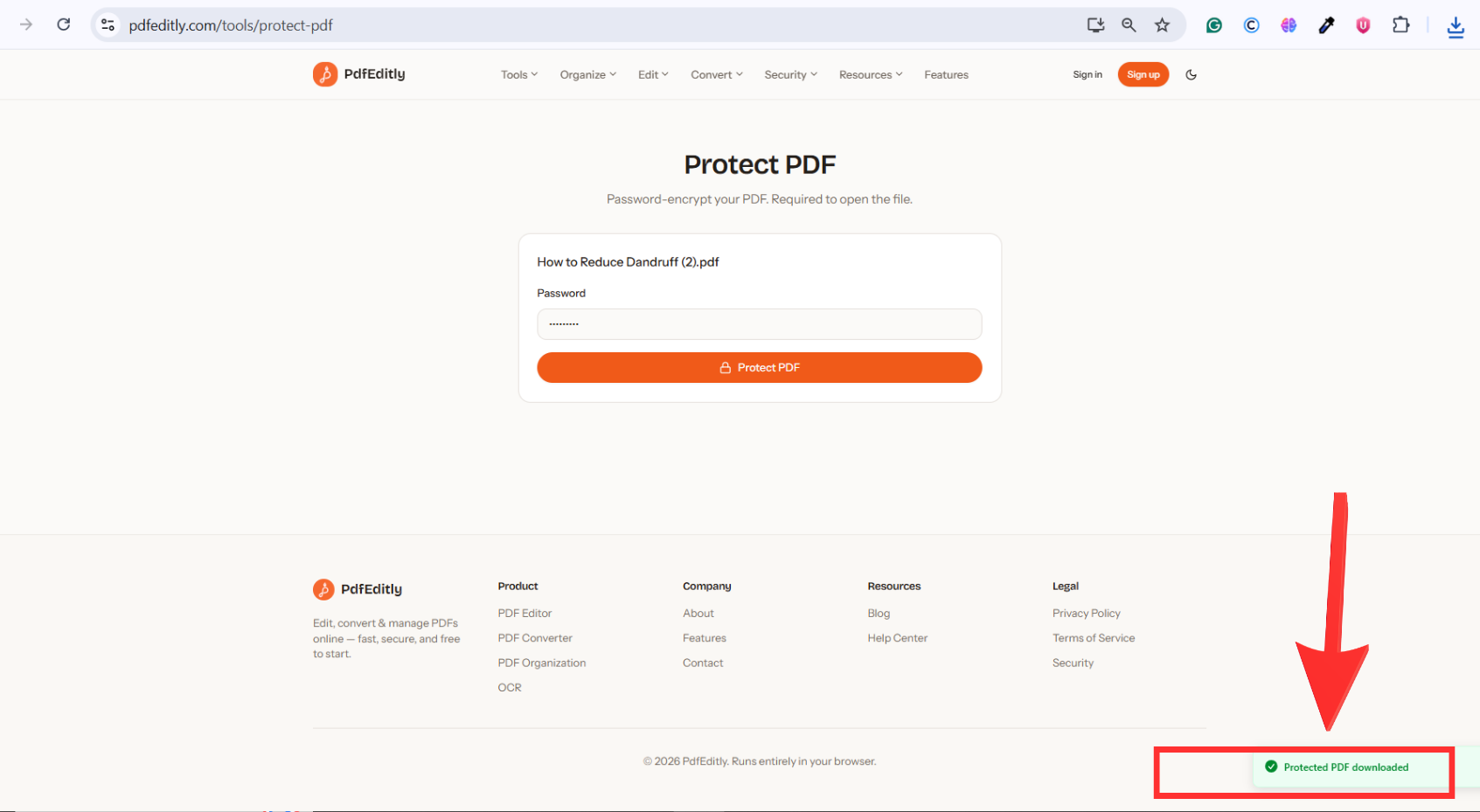
Step 4: Download the Protected PDF
Download the encrypted PDF. Share it only with people who should know the password.
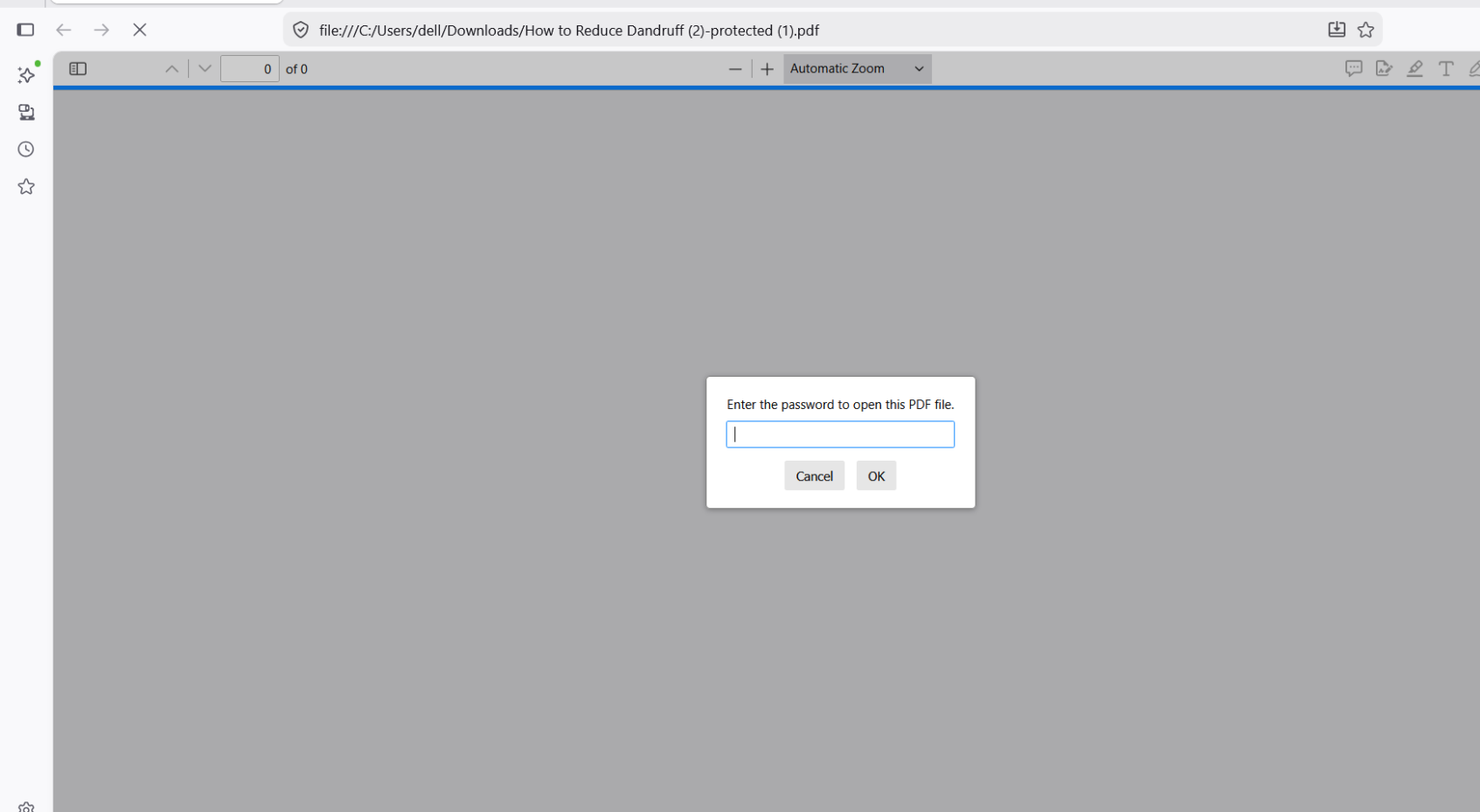
Step 5: Verify Password Protection
Open the downloaded file in any PDF reader. You should be prompted for the password before the pages appear.
How PdfEditly Protects Your Privacy
Many online tools upload documents to remote servers. PdfEditly is different: Protect PDF runs in the browser so files are not sent to PdfEditly servers for encryption.
That local approach matters for contracts, tax forms, medical data, HR files, and ID scans — you keep control of the original document throughout the process.
Documents You Should Password Protect
Not every PDF needs a password, but these types usually do:
- Contracts and NDAs
- Client proposals
- Financial reports and tax forms
- Medical and insurance records
- Business plans
- ID documents and private correspondence
Pair encryption with good sharing habits: send the password through a separate channel, and compress large PDFs only when needed after protection.
Tips for Creating Strong PDF Passwords
- Use at least 12 characters
- Mix uppercase and lowercase letters
- Include numbers and special characters
- Avoid names, birthdays, or reused passwords
- Store the password in a password manager
- Rotate passwords for highly confidential archives
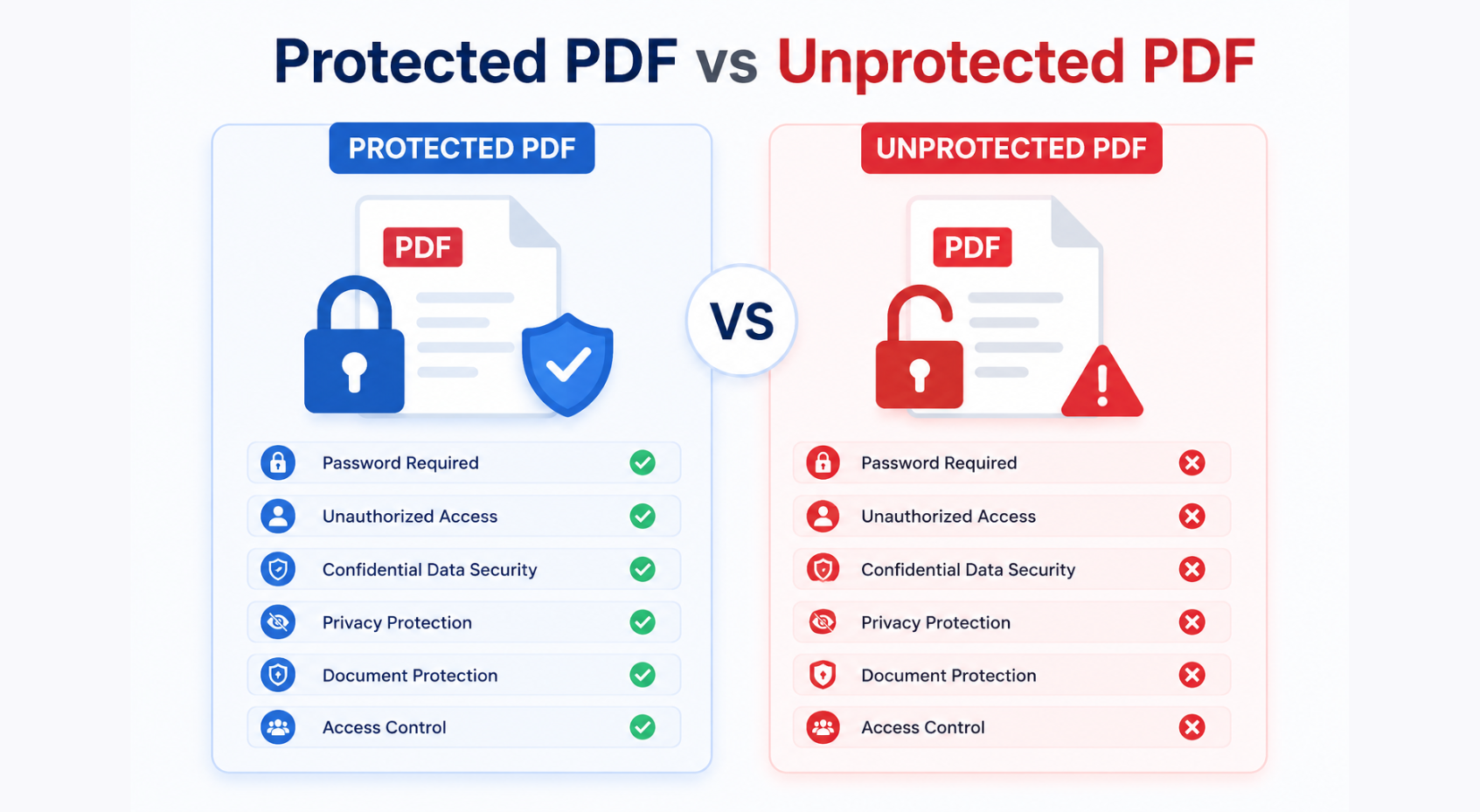
Protected PDF vs Unprotected PDF
An unprotected PDF can be opened by anyone who has the file. A password-protected PDF requires the correct password first, which is why teams encrypt PDF documents before external sharing.
Conclusion
Learning how to protect a PDF with a password is one of the easiest privacy upgrades you can make. PdfEditly lets you protect a PDF with a password online — free, in-browser, with no account required.
Ready to secure a file? Open the Protect PDF tool, or explore more PDF guides on the blog.
Frequently Asked Questions
How do I protect a PDF with a password?
Upload your file in PdfEditly’s Protect PDF tool, choose a strong password, and click Protect PDF. Download the encrypted copy and share the password separately.
Is PDF password protection secure?
Yes. Password protection encrypts the PDF so only people with the correct password can open it. Use a long, unique passphrase for best results.
What happens when someone opens a protected PDF?
The PDF reader prompts for a password. The document opens only after the correct password is entered; otherwise the content stays locked.
Does PdfEditly upload my files?
No. PdfEditly protects PDFs in your browser so the file stays on your device during encryption, giving you stronger privacy and control.