
PDF to PowerPoint Converter Online Free
By PdfEditly Team · Published · 8 min read
Have you ever created a PDF and wanted to be able to place it in a PowerPoint? Maybe you need it for work or for a presentation for a class or organization. Or you might want to add fresh slides or notes before presenting it.
You can use PDF to PowerPoint tools to convert a PDF to a PowerPoint file. There's no need to make each slide individually. PdfEditly will turn your PDF into a PPTX file online. In this guide, you'll learn how the tool works, what the final file looks like, and how you can save it to your device.
What Is a PDF to PowerPoint Converter?
A PDF to PowerPoint converter is a piece of software or an online tool that can convert a PDF to PowerPoint presentation. PDFs can have a locked page setup. Meaning, it will be the same file on all devices. However, it can be tricky to work with a PDF as a slide deck.
PowerPoint allows you to present your content on a screen. You can add more slides, notes, shapes, and other objects to a presentation. A PDF to PowerPoint converter will take the pages from your PDF and turn them into a PowerPoint file. This typically produces a .pptx file that you can open in recent versions of PowerPoint.
Why Convert a PDF to PowerPoint?
Perhaps you have a PDF that contains some helpful information for a presentation. You may have the pages you need for a report, class lesson, product guide, or work file. When convert PDF to PowerPoint:
- Show a PDF in a meeting or class.
- Treat a report as a slide show.
- Use new pages before/after old pages as slides.
- Write speaker notes for slides.
- Convert a presentation into PowerPoint.
For instance, your PDF was 12 pages, and the converter will output 12 PowerPoint slides. You can open the file and format it to whatever you like for your presentation. This can save you time if there is already a PDF that will work for you!
What PdfEditly's PDF to PowerPoint Tool Does
PDFEditly offers a free PDF to PowerPoint converter online. Each PDF page is converted into an image on the slide. It makes an image of the page that looks like the PDF, so the text, pictures, charts, and page layout will look the same.
Here are the main features of the tool:
- The tool converts PDF pages into slides. In the tool, each page will appear on a different slide in the PowerPoint.
- The page does not look any different. But since each slide is a still of an English PDF page, it doesn't have as much of a layout shift as other text-based conversions.
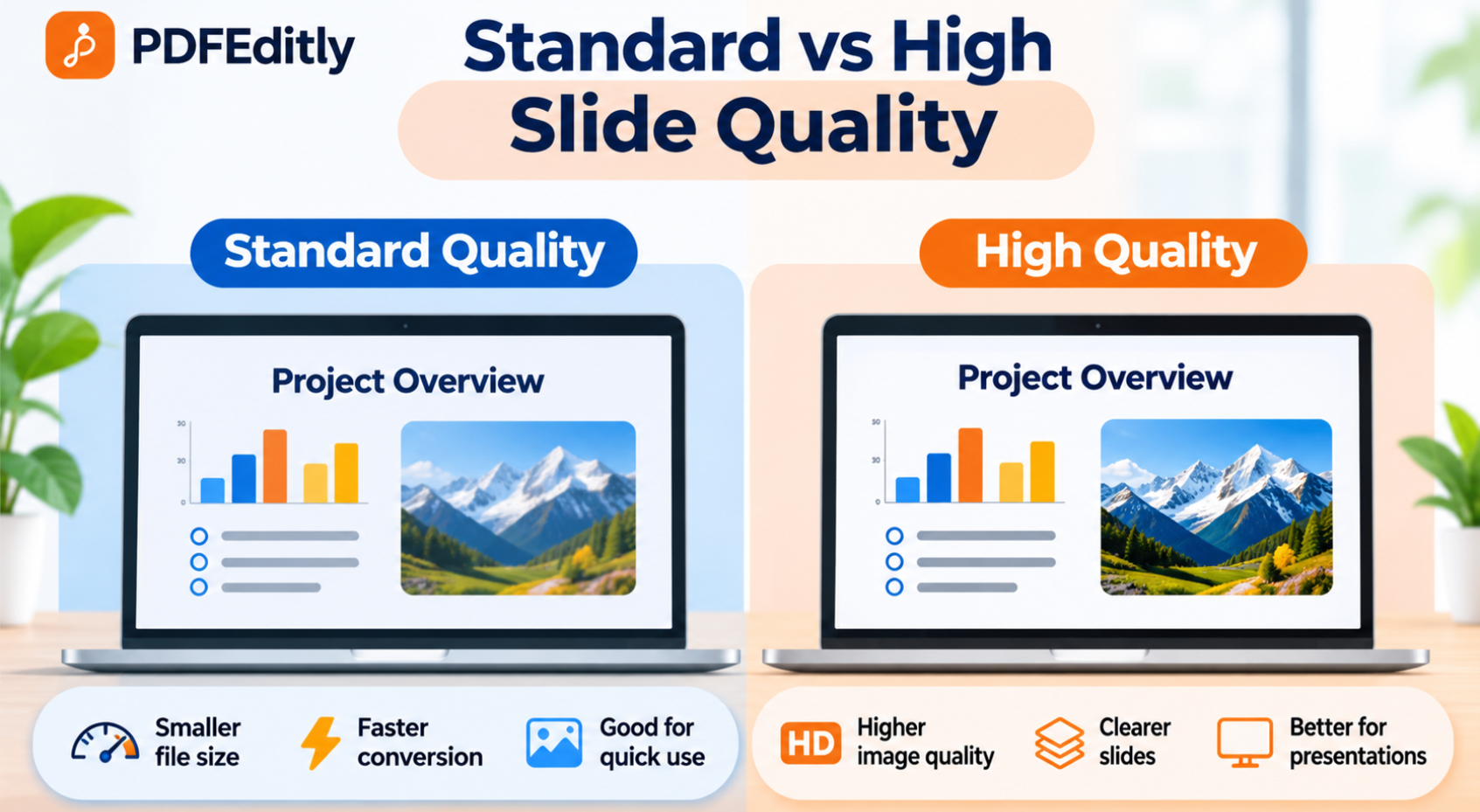
- You have the option of choosing the quality of the slides. Standard keeps file size small. High: sharper on big screens and projectors.
- No watermark, no registration. PDFEditly only claims the converting, along with no sign-up and no watermark.
- Your file remains on your device. The tool runs client-side in your browser with WebAssembly and JavaScript. PdfEditly says that the PDF is never uploaded to their server.
This tool works well when you want a PowerPoint version of your PDF that keeps the same page design.
How to Convert PDF to PowerPoint Online Free
You can use free PDFEditly in your browser. Follow these steps to make your file.
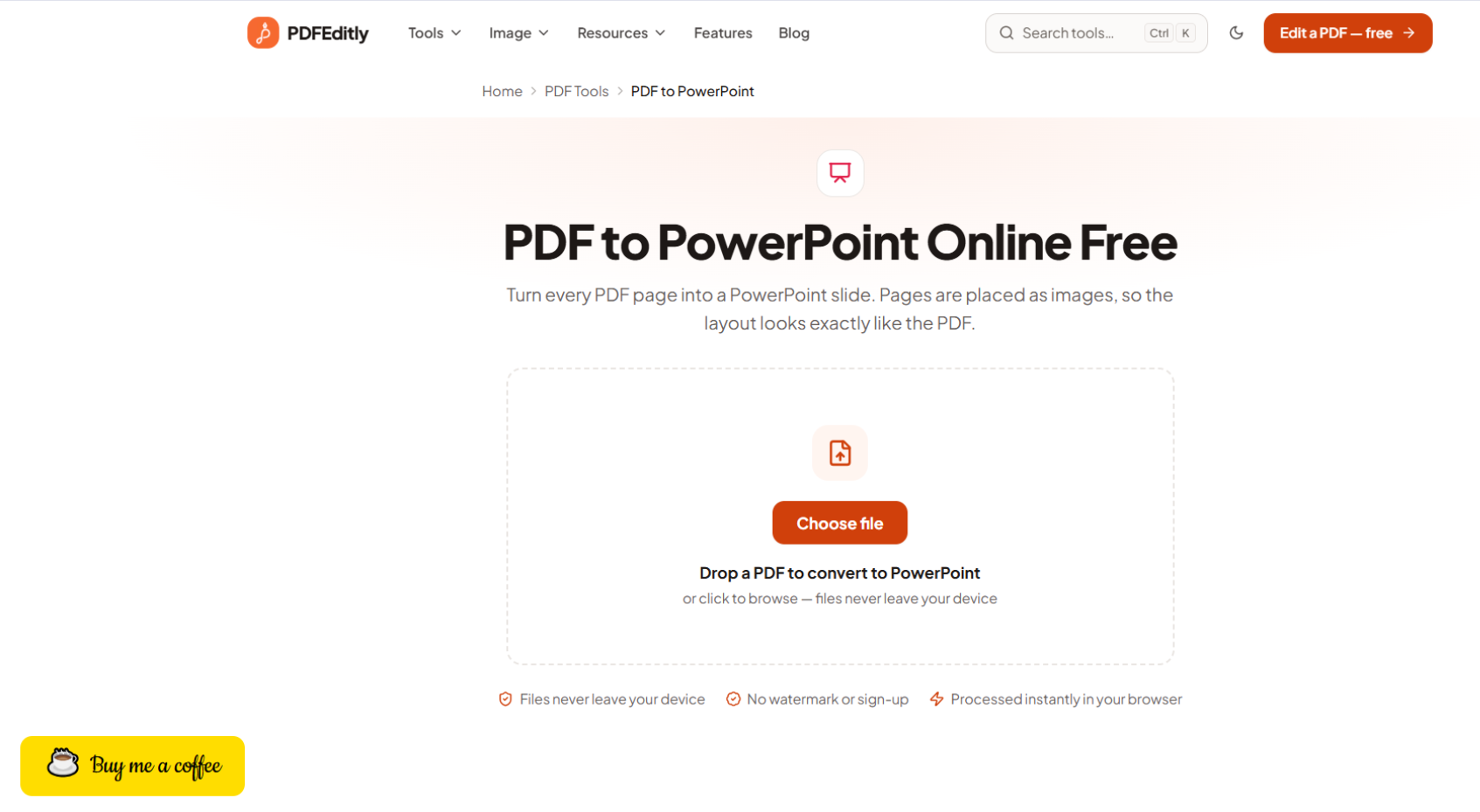
Step 1: Open PdfEditly and Upload Your PDF
Open PdfEditly's PDF to PowerPoint free online tool in your browser. Click the file upload area and choose your PDF from your phone or computer. Wait for the tool to read your file before you continue.
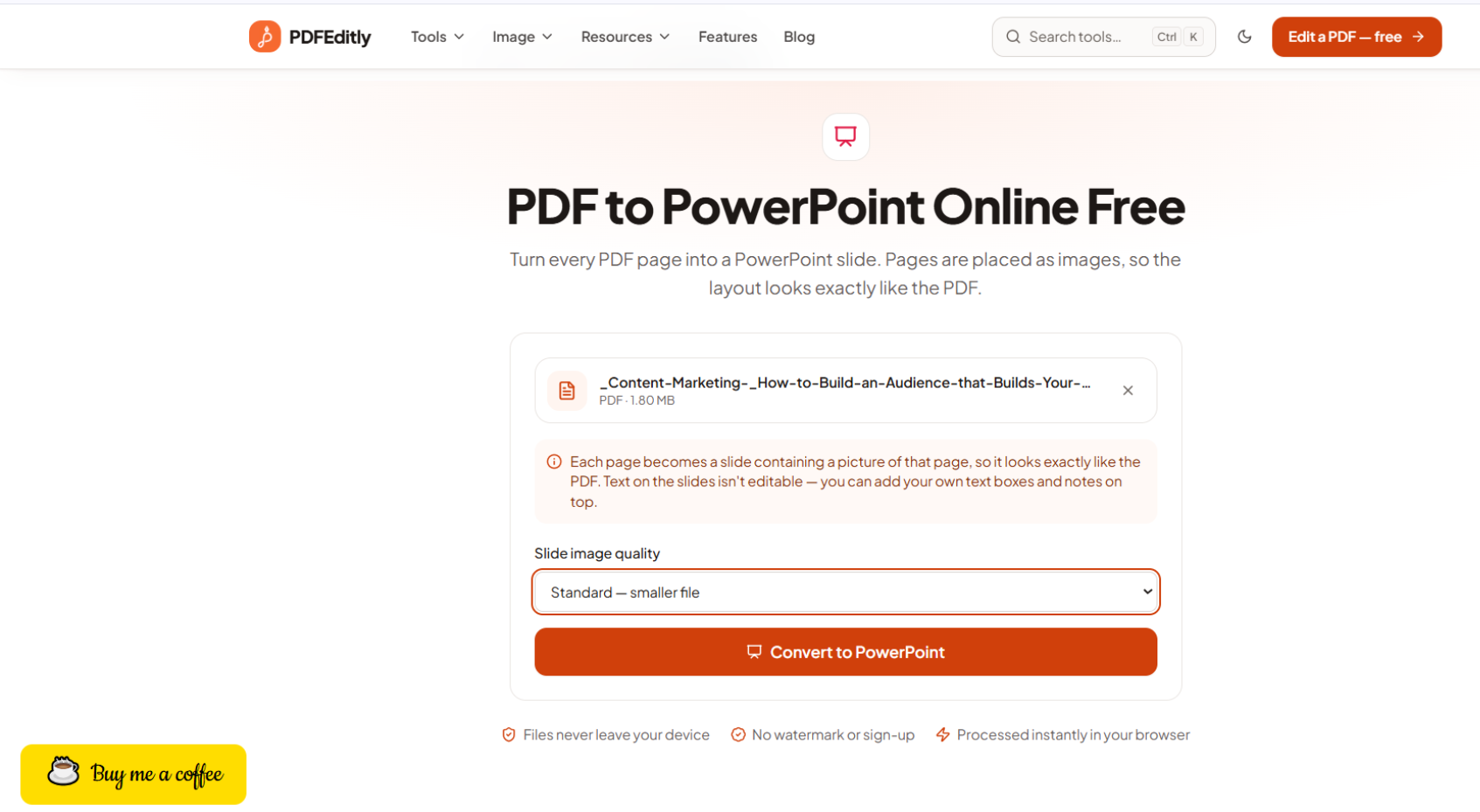
Step 2: Choose Slide Quality
Choose the slide quality that best meets your needs. Select Standard for a smaller PowerPoint file size. Select High for clearer slides, particularly if you will be presenting on a big screen.
Step 3: Convert and Download Your PPTX File
Begin the conversion process, and let PdfEditly generate the PowerPoint presentation. Click on the "download" option to download the file in PPTX format. Now, open this PowerPoint presentation in PowerPoint or Google Slides and make sure everything is fine.
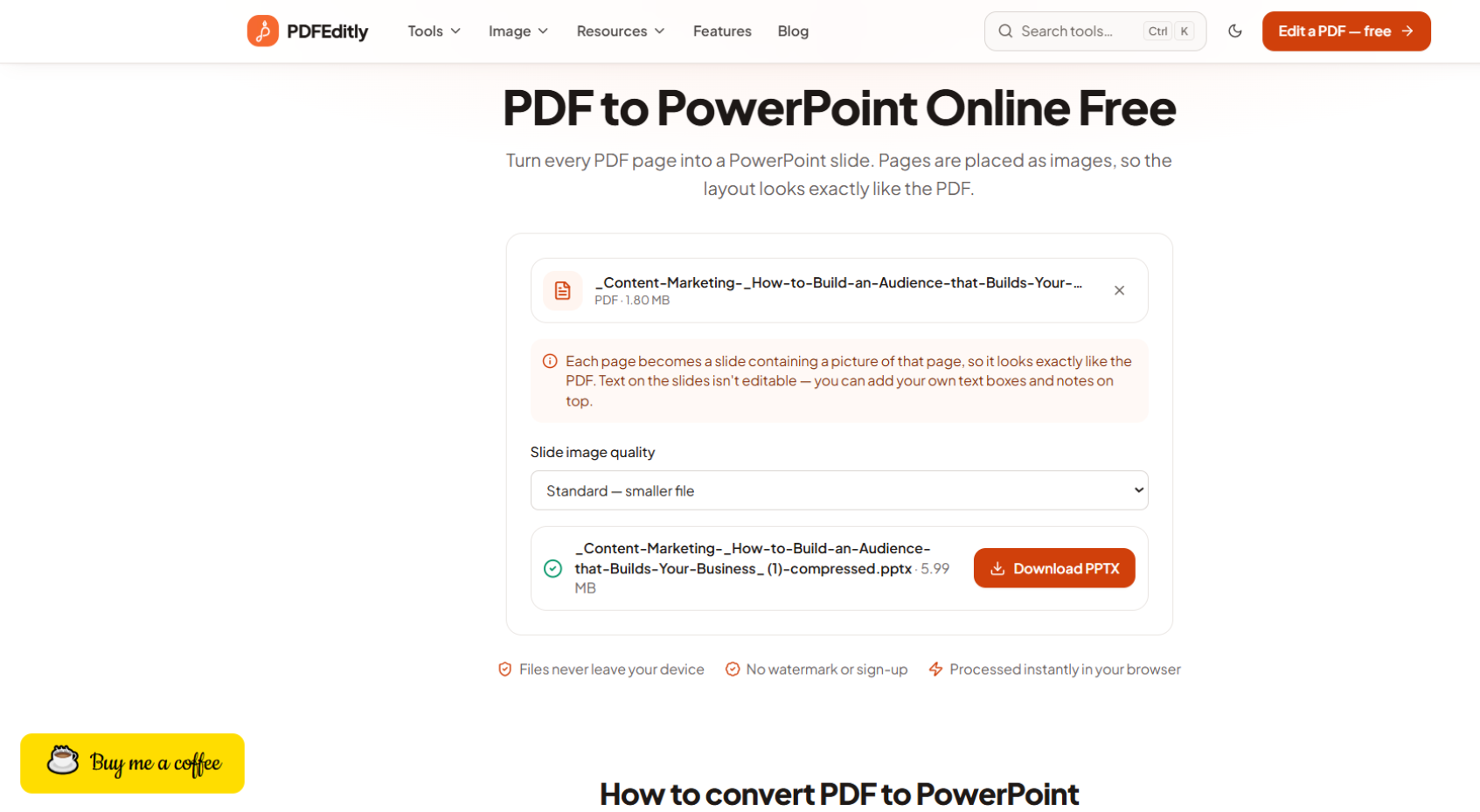
This is how you convert PDF to PowerPoint with PdfEditly. The tool creates the presentation from your PDF pages, so you do not need to build each slide by hand.
What Does the PowerPoint File Look Like?
With PdfEditly, every slide contains an image of a single PDF page. The tool preserves the layout of the page exactly as it looks in the original document. So, if there is a chart, an image, and some text on one page of your PDF file, the slide will display everything just as it is shown in the original PDF file.
This comes in handy, especially if you need to deliver a report or a lesson presentation without altering its appearance. This will give you an output that is in the form of a standard .pptx document. You may view it using Microsoft PowerPoint, Keynote, or even Google Slides. There is also the possibility of adding some notes or even other objects on top of the page image. The PDF to PPT process is useful for talks where the page design matters more than changes to the original words.
Can You Edit Text After Conversion?
This is one of the most common questions about a pdf to powerpoint tool. With PdfEditly, the original text on each slide is part of the page image. You cannot click that text and change a word as you would in a normal PowerPoint text box.
However, you may still make additions to the document. For instance, you may choose to:
- Create a new text box.
- Insert a shape into the slide.
- Insert speaker notes.
- Insert new slides into the presentation.
When changing original wording is required, it is better to use a PDF to Word converter first. The converter page of PdfEditly also suggests using PDF to Word when making textual modifications. Thus, select the appropriate converter according to your needs. Use this converter when you require identical-looking pages in PowerPoint.
Standard vs High Slide Quality
PDFEditly gives you two slide-quality choices. Both turn the PDF pages into images, but they serve different needs.
Quality
Best for
Standard
Smaller file size and everyday use
High
Sharper slides for large screens and projectors
If you plan to send the presentation by email, Standard may be a good choice because it keeps the file smaller. If you will show the slides on a large screen, High may give you a clearer view of the page. The final file size can be larger. Choose the quality before you download your PDF to PPTX file.
Can You Convert PDF to PowerPoint on a Phone?
Yes. You can access PdfEditly through your phone’s browser and use the app via your phone. All you need to do is access the website, pick your PDF file, select the slide quality, and download the result. The process may vary slightly between Android and iPhone phones.
After the download, open the .pptx file in a presentation app that supports PowerPoint files. This can help when you need a PDF to PPT file but do not have your computer with you.
Conclusion
If you need a tool for converting your PDF pages to PowerPoint slides, a PDF to PowerPoint converter is an effective tool that will be useful to you. PDFEditly converts each page to a slide image format, preserving the layout of the original document. Choose between Standard and High quality and save your output as PPTX. You cannot edit any texts on your slides; however, you can easily create additional texts, shapes, and notes. PdfEditly is useful for creating a PowerPoint presentation from your PDF document.
Frequently Asked Questions
Is PdfEditly's PDF to PowerPoint converter free?
Yes, PdfEditly provides free conversion from PDF to PowerPoint. No registration is required for you to use the application. Also, the program does not put any watermark on your slides.
Does each PDF page become one PowerPoint slide?
Yes, PdfEditly turns each PDF page into a PowerPoint slide where the page is converted into an image and placed in the slide. This helps to retain the original look of the PDF page.
Can I edit the text in the new PowerPoint file?
No, you cannot make any changes to the original text because it becomes a part of the slide picture. What you can do, however, is add some text in the form of text boxes, shapes, or notes.
Which file type does PdfEditly create?
PdfEditly creates a PowerPoint file in the .pptx format. You can open this file in Microsoft PowerPoint, Keynote, or Google Slides. After opening it, check your slides to make sure they look right.
Are my PDF files uploaded to PdfEditly?
It is not; according to PdfEditly, its converter runs in your browser using JavaScript and WebAssembly. Your PDF will not be uploaded to PdfEditly’s server but rather converted in your browser.